The preset browser
The preset browser is where you manage your presets. Here you can filter, rate, annotate and move presets between banks, and you can import and export packs. Open it with Browse in the Toolbar; Esc, Close or Enter leaves it. If you turn off SNAP then Enter will set the currently marked preset in the preset list as the active preset. While it is open, the Toolbar's preset menu and arrows are disabled.
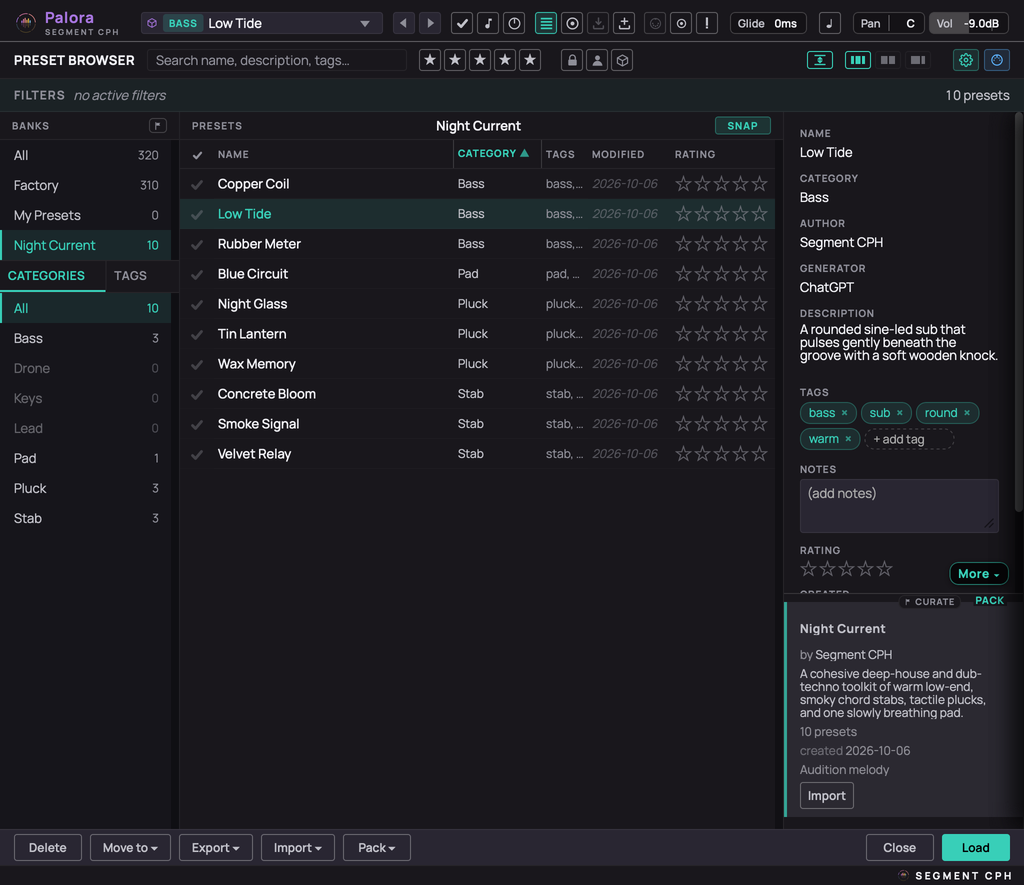
Search and filter
The top row consists of 3 areas:
Filter
Textual search in any field in a Preset such as name, description or tag.
Search by rating. Search will include presets with x stars or more.
Search by bank type: Factory, User or Pack. All are selected by default.
Layout
Choose between: All panes (banks, list, details), Banks and list (hide details), List and details (hide banks).
Next to the layout buttons you will find the fit-to-window button. It is on by default and in that mode the Preset Manager fills the available area. So if you have shrunk Palora's window, this mode will fit to that size. When it is Off, the Preset Manager is full size and you scroll the page to reach the rest. Toggle-state is saved on your machine.
Settings
Open the settings pane to change Palora's settings or the MIDI settings to manage MIDI CC assignments.
Active filters
One row listing every filter that is hiding presets: the category, the rating, each tag, the search text and each hidden type. Each has its own ×, and Clear all removes them all but keeps the bank you are in. With nothing active, it reads "no active filters".
On the right, the number of presets shown is always visible.
Banks
All, Factory, My Presets, then every pack from A to Z. Click a bank to show only its presets. The count beside each is the bank's total, whatever the filters.
My Presets and ordinary packs are writable. Factory and read-only commercial packs cannot be edited, saved in place, moved, deleted or exported.
The flag in the header hides packs you have marked Curated.
Categories and tags
Two tabs.
Categories lists the categories your presets actually use, with counts. Click one to show only it, and click it again to clear. Presets without a category have no row here; their record shows "(uncategorized)".
Tags shows every tag with its count. Click tags to filter by them; with several selected, only presets carrying all of them are shown.
The list
The presets, with columns for Keep, name, category, tags, last modified and rating. Click a heading to sort by it, and again to reverse.
Snap, in the list header, decides what a click does. With Snap on, clicking a preset or moving to it with the arrow keys loads it into the synth. With Snap off, a click only selects it, and double-click or Enter loads it. With Snap and Audition both on, clicking down the list plays each preset in turn.
Click the stars to rate any preset. The Keep tick appears on pack presets
only and marks a preset to survive Clean up.
A ⚠ before a name means loading that preset needed fixes due to errors or unknown fields in the preset file.
The problems are listed in the preset's details.
Preset details
The selected preset's details. In a writable bank, click the name, category, author or description to edit it. Generator shows which AI (if any) made the preset and cannot be edited.
Your rating, notes and tags work on any preset, Factory included, and are stored on your machine rather than in the preset. On a read-only preset your tags sit beside the author's locked ones. Export carries your tags, but not your rating, notes or Keep marks.
In a writable bank a preset can carry its own audition melody: import a MIDI file, clear it, or transpose it, by an octave with a click and a semitone with ⌘/Ctrl-click. If loading had to fix the file, the fixes are listed with a Fix button that rewrites the file; the sound does not change.
Bank summary
The bank you are in and its total number of presets.
For a pack it also shows the author, description and creation date, editable in a writable pack, and the pack's audition melody, which every preset in the pack uses unless it has its own. Curate marks the pack as done: it dims in the list and is no longer offered when moving presets.
Preset and pack management
Delete removes the selected preset permanently. Move to sends the selected preset, every Keep-marked preset in the pack, or everything shown, to My Presets or a writable pack; ratings, tags, notes and Keep marks go with them. Export copies the preset, or everything shown, to the clipboard or to a .palora or .palorapack file. Import takes either from the clipboard or a file, and a .palorapack always becomes its own pack.
Pack renames the current pack or deletes it to the Trash. Clean up deletes every preset in the pack not marked Keep, after writing a backup that Restore from backup brings back. New pack creates an empty one.
Close leaves the browser; Load loads the selected preset and closes it. With Snap on, a preset you clicked is already loaded, and Close does not undo that.